Mobile clock-in: by phone, tag or text
The employee's phone is the punch clock. Start and Stop with a single tap, tap the work site's NFC tag or type the times freely – on Android and iPhone, without an app store.
- Android and iPhone
- Install to home screen from the browser
- 5 languages
Three ways to clock in with a phone
The entry method is chosen per employee – the same employee can have several.
Method 1
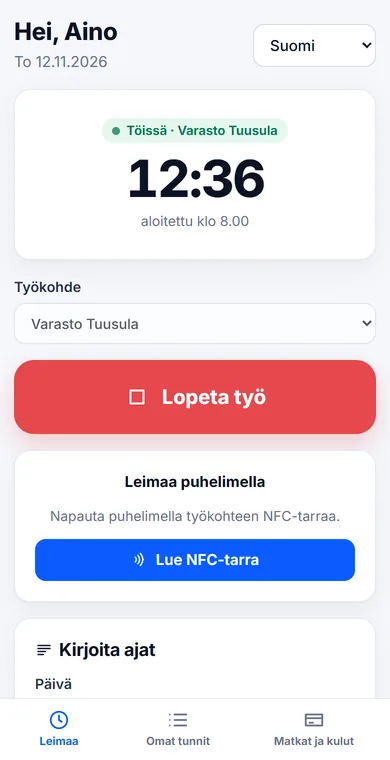
Start and Stop with a single tap
The employee selects a work site and taps Start – and Stop in the evening. The hours are calculated automatically, and work in progress is immediately visible to the supervisor.
- Android and iPhone, also tablets and computers
- Work site and project selected from a list
- Optional location at start and stop
Method 2
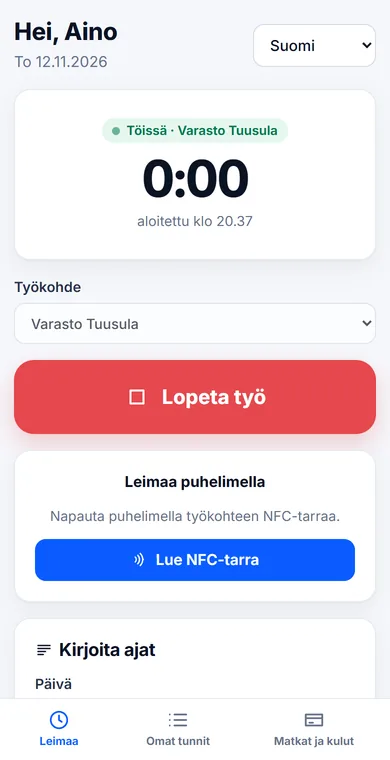
Tap the work site's NFC tag
An NFC tag or key fob is stuck on at the work site. The employee taps it with their phone: the first tap starts work at the correct site, the next one stops it.
- Chrome browser on an Android phone
- The site cannot be chosen incorrectly
- An affordable alternative to a punch clock at small sites
Method 3
Type your times freely – no tag needed
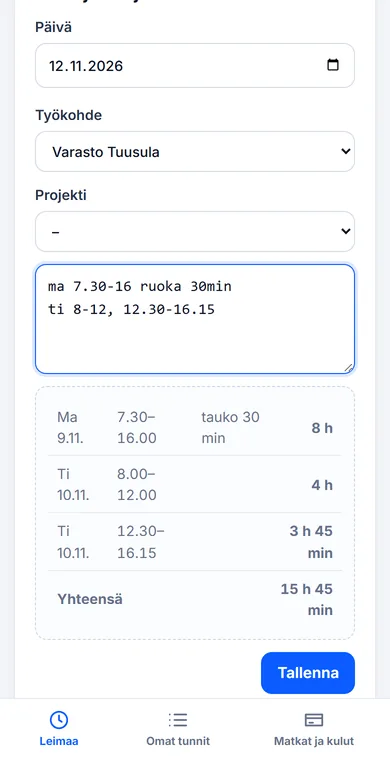
When someone forgot to clock in or worked without a phone, the times are typed the way they come to mind. The app shows its interpretation before saving.
- Mon 7.30-16 lunch 30min is enough
- Several days at once, each on its own line
- Breaks, night shifts and the work site are recognised
Phone and punch clock together
On large building sites and premises, employees clock in at the punch clock with a key fob or Valtti card. On their phone, employees see their own punches and hours immediately – and at small sites they clock in by phone.
| Method | What you need | Android | iPhone |
|---|---|---|---|
| Start / Stop button | Phone, tablet or computer | ✓ | ✓ |
| Work site NFC tag | NFC tag or key fob at the site | ✓ (Chrome) | – |
| Free-text entry | Nothing | ✓ | ✓ |
| Punch clock + key fob | Rollock TIME device and key fob or Valtti card | no phone needed | no phone needed |
| Kiosk (tablet + PIN) | Tablet at the entrance | ✓ | ✓ |
A phone does not work as a key at the punch clock: the device identifies a key by the permanent ID of its NFC chip, which phones do not have.
Everything for the employee on the same phone
- Own hours, flexitime balance and period confirmation
- Leave requests and leave balance
- Shifts a week ahead
- Travel and expenses: kilometres, daily allowances and receipts as photos
- View in Finnish, English, Estonian, Russian or Ukrainian
Questions about mobile clock-in
Do I have to download the app from an app store?
No. The app is opened in the browser at leimauslaite.fi/app, and it can be installed on the home screen with its own icon (Android: Install app, iPhone: Share → Add to Home Screen).
Does clocking in work on iPhone?
Yes: the Start/Stop button and free-text entry work on iPhone and Android. Reading NFC tags in the browser works in Chrome on Android – on iPhone you clock in with the button or at the punch clock.
Can I use my phone to clock in at the punch clock?
Not reliably. The punch clock identifies a key by the permanent ID of its NFC chip, which phones do not have. At the device you clock in with a key fob or Valtti card – with a phone you clock in in the app or with the work site's NFC tag.
Does the app record location?
Only if the company enables it. Even then, the location is recorded only at the moment of starting and stopping, and the employee is notified of it.
Which languages does the mobile app support?
The employee view is available in Finnish, English, Estonian, Russian and Ukrainian.
Clock in with your phone today
Free for 1–3 employees. No app store, no hardware to buy – invite employees by email.